
This page guides you through the installation of QCAD from a flatpak on Linux operating systems.
Contents
Open a Terminal
We will install QCAD using a Terminal as this is the preferred way to manage and maintain a Linux system. There are also GUI applications that can be used to install Flatpaks but we will not cover these in this guide.
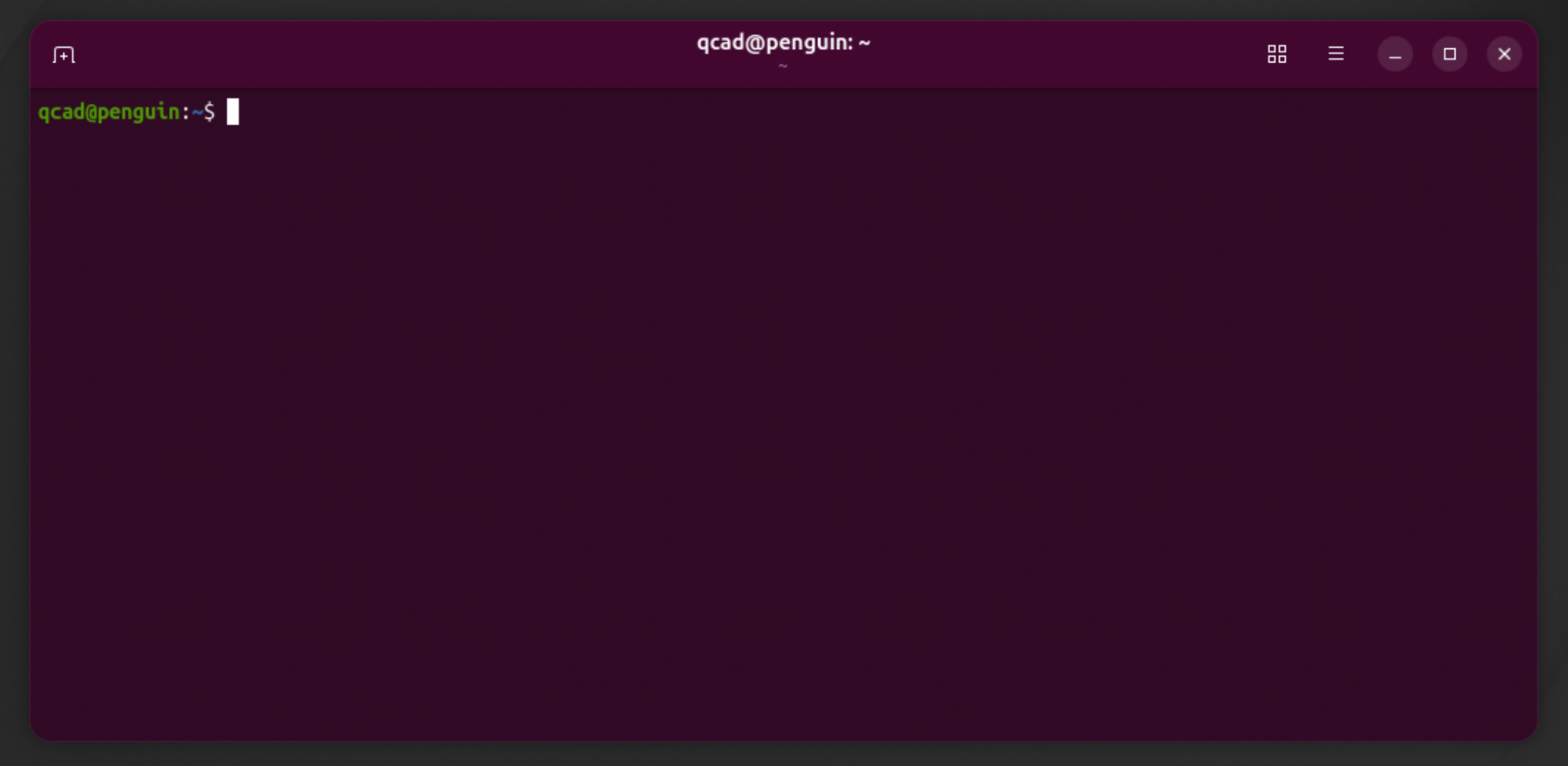
Open the Terminal application. A usually blackish window will open with the text "username@host:˜$" or similar where username is your username, here "qcad" and "penguin" is here the name of the host or computer:
Installing flatpak
Copy the following code to your clipboard and paste it into the Terminal. You can paste into the Terminal with a right-click:
sudo apt install flatpak
Hit the Enter key.
If the Terminal tells you that apt is not found, you are not using a Debian or Ubuntu Linux. Try this instead:
sudo dnf install flatpak
If the Terminal tells you that flatpak is already the newest version, you already have flatpak and you can skip to the next section.
If the Terminal asks you "Do you want to continue?", hit Enter again.
If the Terminal tells you that you are not allowed to do this, ignore this for now. You might already have flatpak installed on your system anyway.
Wait for the installation of flatpak to complete (typically a few minutes).
When you see the "username@penguin:˜$" line in green again, the installation has completed.
Checking your flatpak Version
Run:
flatpak --version
Make sure your flatpak version is at least 1.12 otherwise the installation will likely fail.
Adding the Flathub Repository
Copy the following code to your clipboard and paste it into the Terminal:
flatpak --user remote-add flathub https://dl.flathub.org/repo/flathub.flatpakrepo
Hit Enter.
Finding out the CPU Type
Next, we need to find out what CPU your computer is based on.
In the Terminal, type
uname -m
and hit Enter.
This will display your CPU type, for example "aarch64" or "x86_64".
If your computer displays "aarch64", you have a 64-bit ARM CPU.
If your computer displays "x86_64", you have a 64-bit Intel or AMD CPU.
Keep in mind what CPU type you have.
Installing the Correct Runtime
If your CPU is aarch64:
flatpak --user install flathub org.freedesktop.Platform/aarch64/25.08
If your CPU is x86_64:
flatpak --user install flathub org.freedesktop.Platform/x86_64/25.08
Hit Enter.
⚠️ If you get an error "Unable to load summary from remote flathub: URI ... exceeded maximum size of 10485760 bytes", your flatpak version is outdated. In this case, please run:
flatpak --user remote-delete --force flathub
flatpak --user remote-add flathub https://dl.flathub.org/repo/flathub.flatpakrepo
and then try the install again with the command above.
flatpak asks you if you want to install a number of things. Confirm this with Enter again:
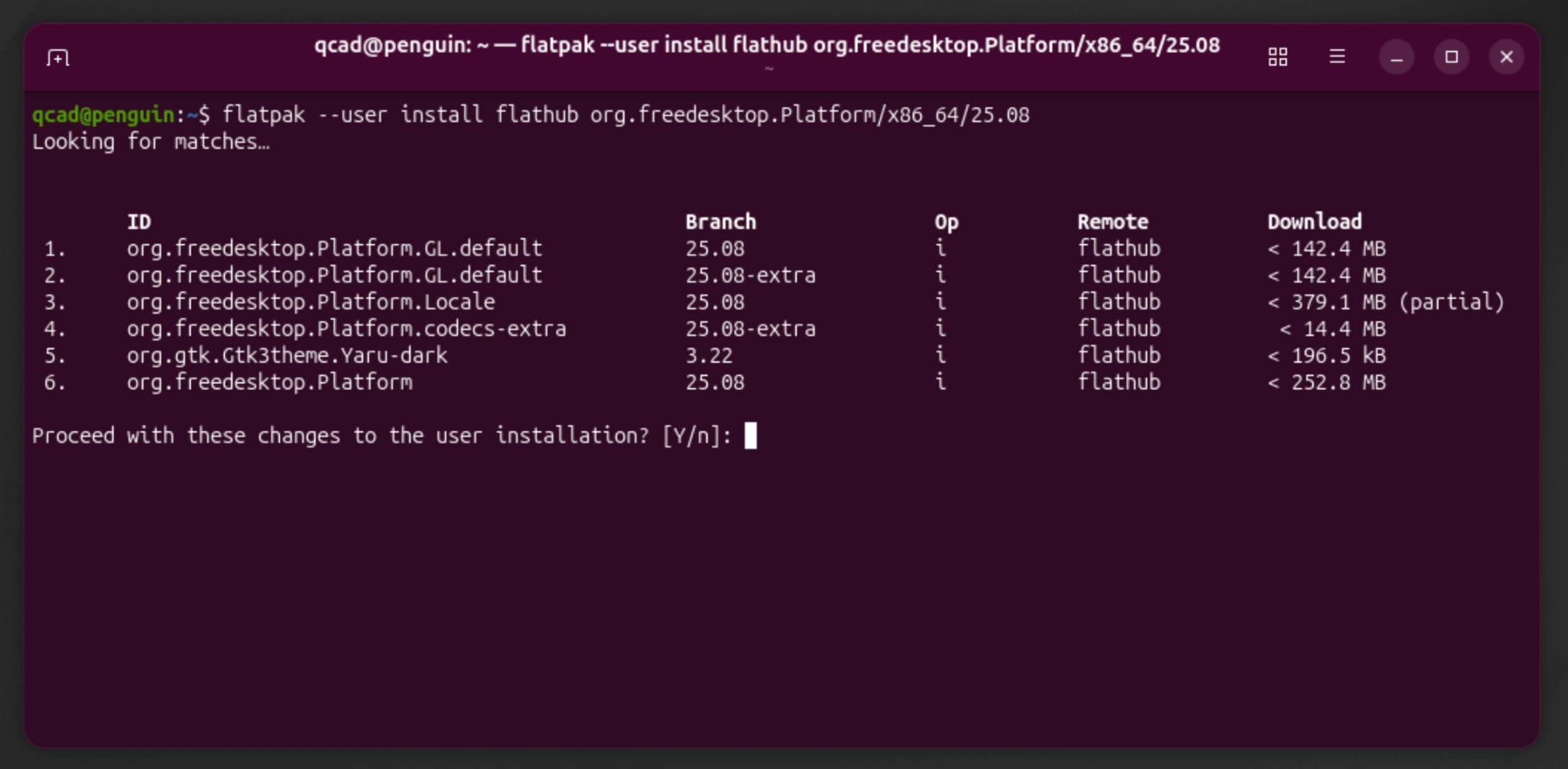
flatpak installs these packages and tells you "Installation complete" when it is done.
Downloading the Correct QCAD Package
Open the download area from the link you have received after your purchase.
Download the flatpak file for your CPU.
If you have a 64-bit Intel or AMD CPU, scroll down to Linux > Qt 6 > 64-bit Intel.
If you have a 64-bit ARM CPU, scroll down to Linux > Qt 6 > ARM (64bit)
Below the title you have scrolled to, click on the item with "flatpak" in its name to download the flatpak file for that platform to your Downloads folder.
Wait for the download to complete.
Installing QCAD
Go back to the Terminal app or open it again.
In the Terminal app, navigate to the "Downloads" folder by typing
cd ~/Downloads
Hit Enter.
If you have an Intel CPU, type:
flatpak install --user qcad-3.x.x-pro-linux-qt6-x86_64.flatpak
and hit Enter.
If you have an ARM64 CPU, type:
flatpak install --user qcad-3.x.x-pro-linux-qt6-arm64.flatpak
and hit Enter.
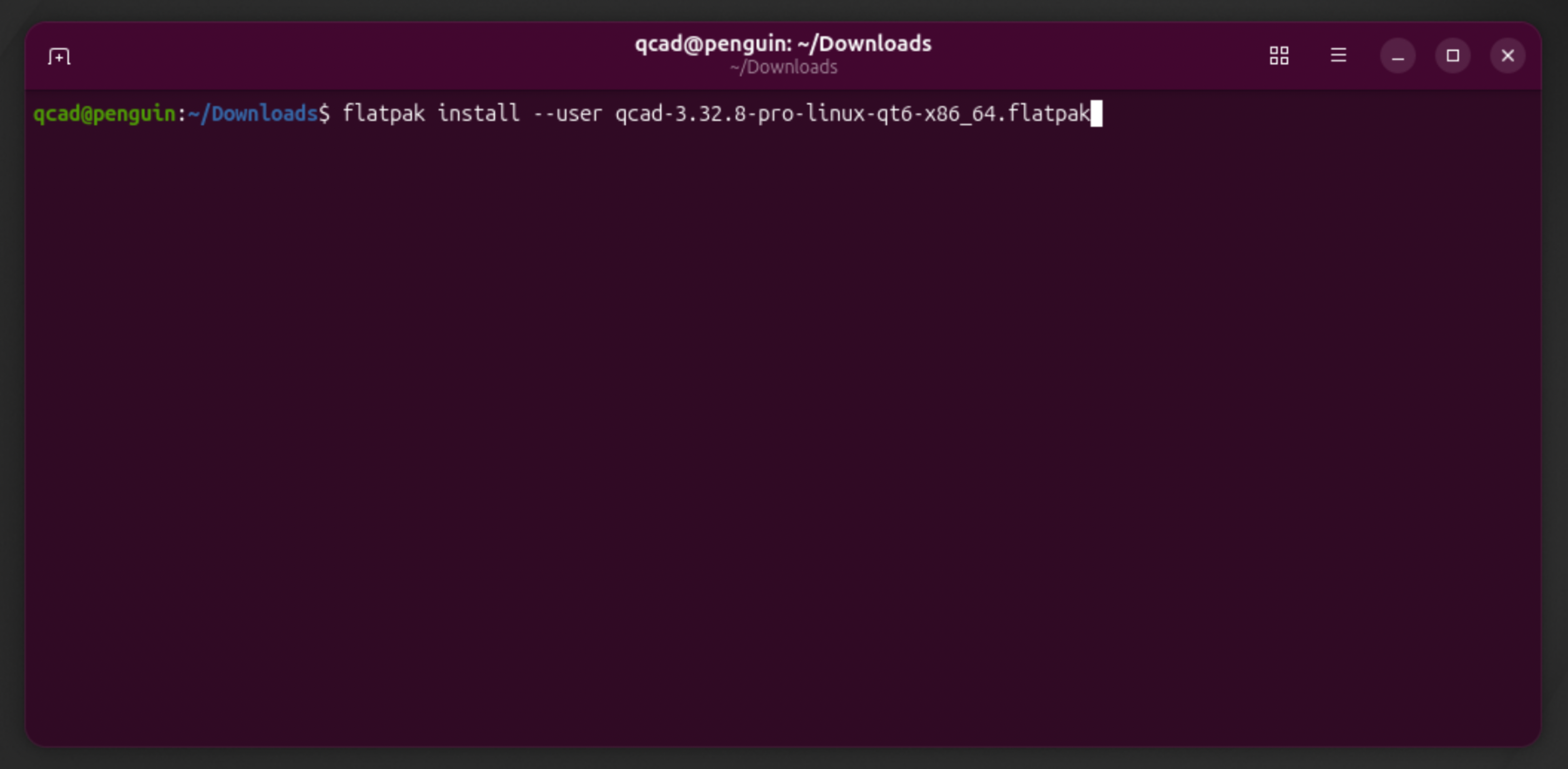
"3.x.x" above is the exact version number of the package you have downloaded.
The Terminal will ask you if you want to proceed:
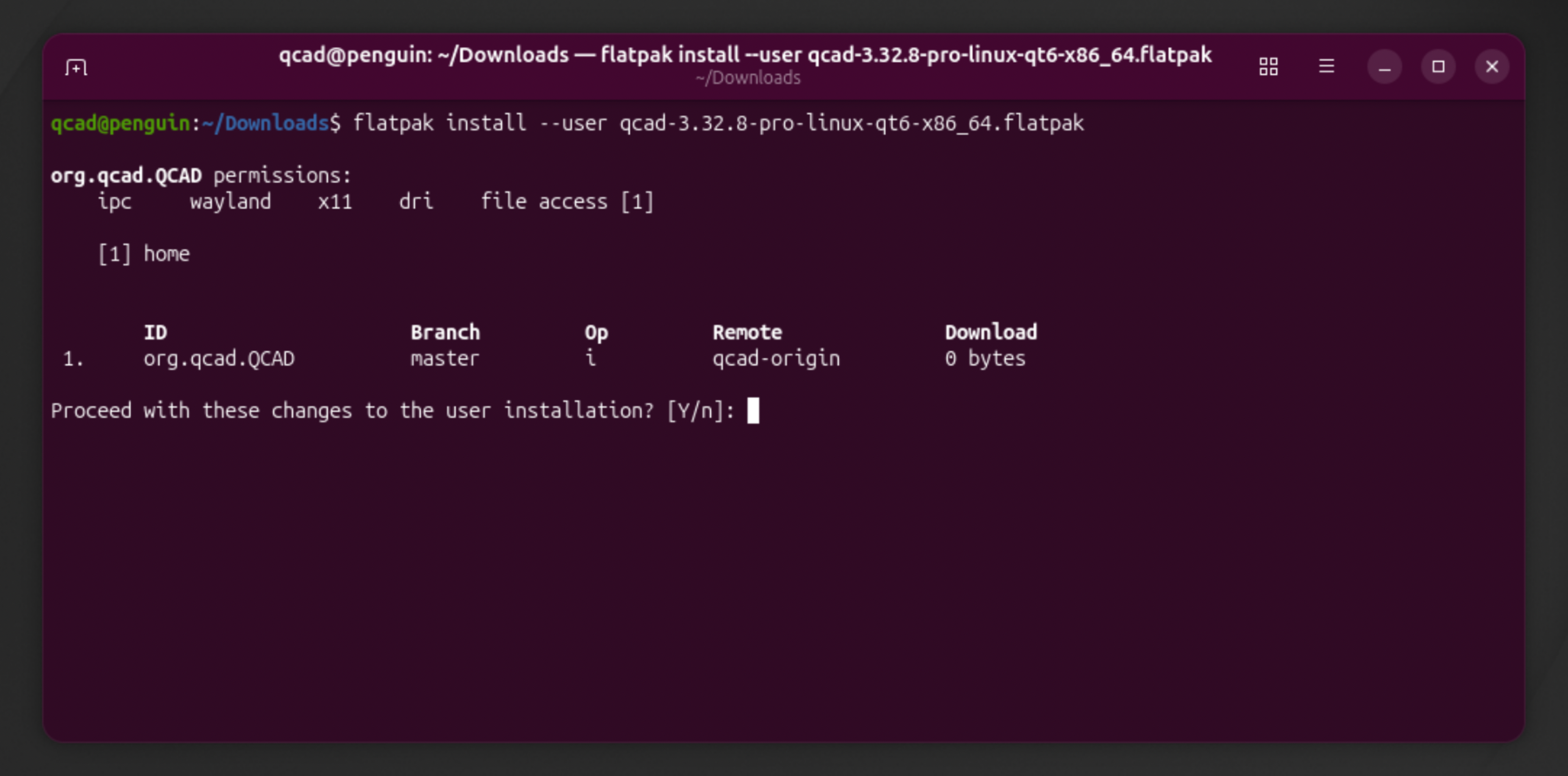
Hit Enter to confirm.
When the installation has finished, the Terminal will show:
Installation complete.
Running QCAD
To start QCAD, type:
flatpak run org.qcad.QCAD
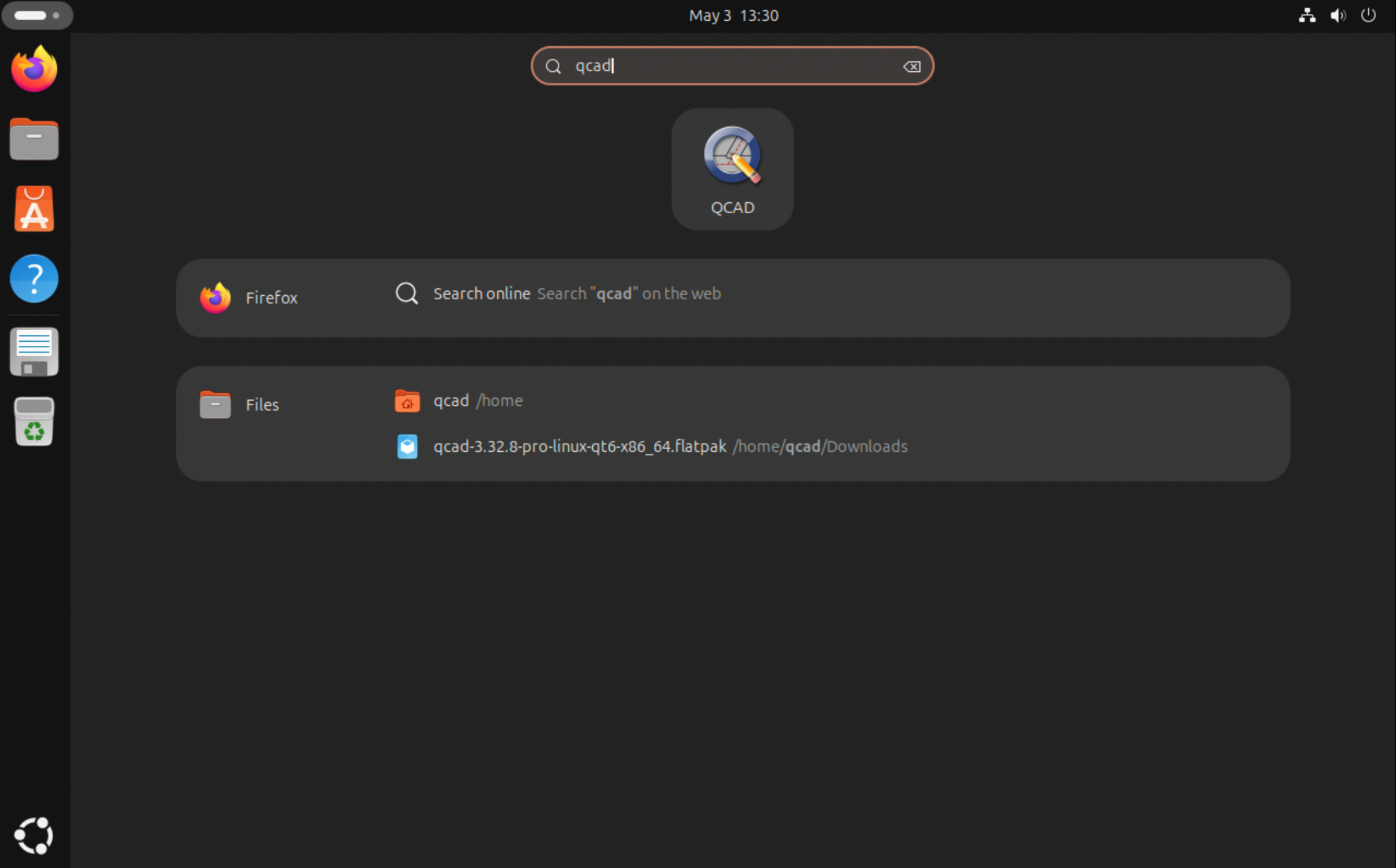
Or use the Launcher a the top left, where you can find QCAD:
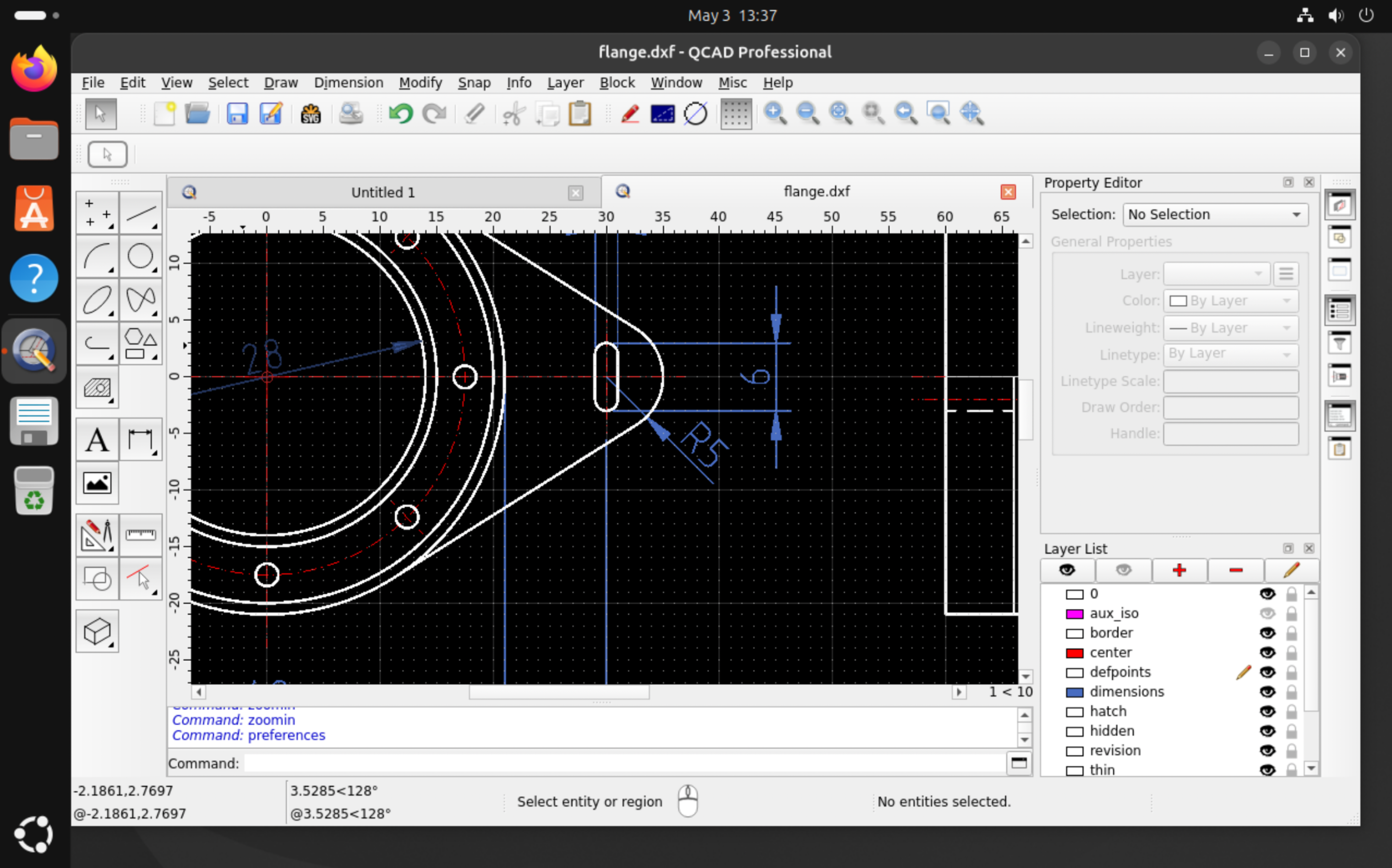
QCAD will start with its welcome screen where you can choose some default settings. Once you confirm, the QCAD application window will be shown and you can start working with QCAD:
Running Command Line Tools
After installing a flatpak, you won't have access to the command line tool launcher scripts (dwg2pdf, dwg2bmp, ...).
One way to still run the command line tools of QCAD using a flatpak installation, is to pass the launcher scripts as arguments to flatpak:
flatpak run org.qcad.QCAD -autostart scripts/Pro/Tools/Dwg2Pdf/Dwg2Pdf.js
The launcher scripts for the various QCAD command line tools are:
- merge:
scripts/Tools/MergeDrawings/MergeDrawings.js - bmp2dwg:
scripts/Pro/Tools/Bmp2Dwg/Bmp2Dwg.js - bbox:
scripts/Pro/Tools/BoundingBox/BoundingBox.js - dwg2bmp:
scripts/Pro/Tools/Dwg2Bmp/Dwg2Bmp.js - dwg2csv:
scripts/Pro/Tools/Dwg2Csv/Dwg2Csv.js - dwg2dwg:
scripts/Pro/Tools/Dwg2Dwg/Dwg2Dwg.js - dwg2maptiles:
scripts/Pro/Tools/Dwg2MapTiles/Dwg2MapTiles.js - dwg2pdf:
scripts/Pro/Tools/Dwg2Pdf/Dwg2Pdf.js - dwg2svg:
scripts/Pro/Tools/Dwg2Svg/Dwg2Svg.js - dwgexplode:
scripts/Pro/Tools/DwgExplode/DwgExplode.js - dwghatch:
scripts/Pro/Tools/DwgHatch/DwgHatch.js - dwghatcharea:
scripts/Pro/Tools/DwgHatchArea/DwgHatchArea.js - dwginfo:
scripts/Pro/Tools/DwgInfo/DwgInfo.js - dwgmapconvert:
scripts/Pro/Tools/DwgMapConvert/DwgMapConvert.js - svg2dwg:
scripts/Pro/Tools/Svg2Dwg/Svg2Dwg.js - dwgnest (QCAD/CAM):
scripts/Nest/Tools/DwgNest/DwgNest.js